 CSCHEAT.DEAccount & download ↗
CS2 FEATURE GUIDE / WINDOWS 0.15.10
CS2 Crosshair Editor & Custom Keybinds
Design and share custom crosshairs with CSC-X1 codes, adjust your app shortcuts and keep the controls you use most within reach.
Make your crosshair your own
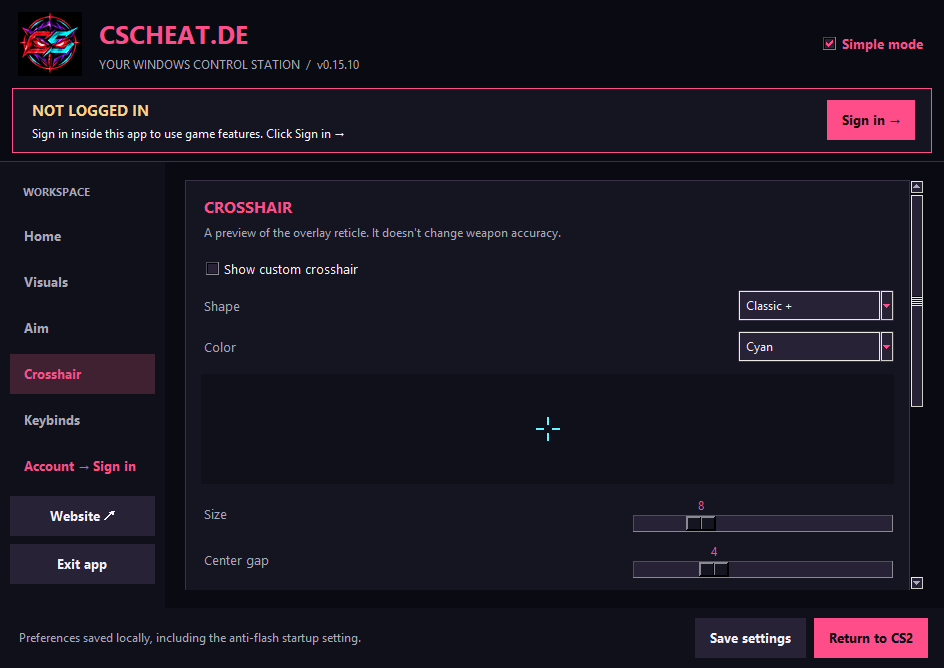
Choose a Classic cross, T shape, dot, circle or combined design, then adjust color, size, gap and outline in the Windows app. The preview lets you see the appearance before returning to CS2. A clear crosshair can make your setup feel more familiar; changing its appearance does not change weapon accuracy.
Share a look with CSC-X1
Copy your crosshair as a CSC-X1 code, share it, or paste another code into the app to preview and apply its appearance. These codes are for the CSCHEAT.DE crosshair editor. They are not CS2 console commands or native Counter-Strike crosshair codes. Use the editor preview to check a shared design before applying it.
Know your default shortcuts
F1 brings back the app window, F2 controls the display, F5 controls aim, F6 controls anti-flash, F7 stops all controls and F8 exits. F3 and F4 are left free, as are F9 through F12. This avoids taking over several common game and screenshot keys. You can remap supported controls to fit your own habits.
Keep recovery keys easy to reach
Choose different keys for actions you need to control independently. RAGE and bunny hop have their own activation choices; confirm those settings before trying them in the game. The default recovery keys F1, F7 and F8 remain available when the game is not focused. If a chosen key conflicts with another app, open the keybind settings and select an alternative. Keep a note of your changes until the new layout feels natural.